How to Use
A guided tour of every feature in ADOFAI Rolling Practice — what it does, how to access it, and why it's useful. Screenshots are placeholders and will be filled in.
Note: screenshots are only available in English.
Getting Started
The Welcome Prompt
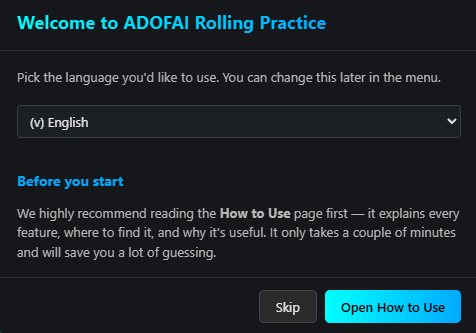
Shown automatically the first time you visit. Lets you pick your language and recommends opening the How to Use page first. Useful for getting oriented before you start playing.
The Settings Menu
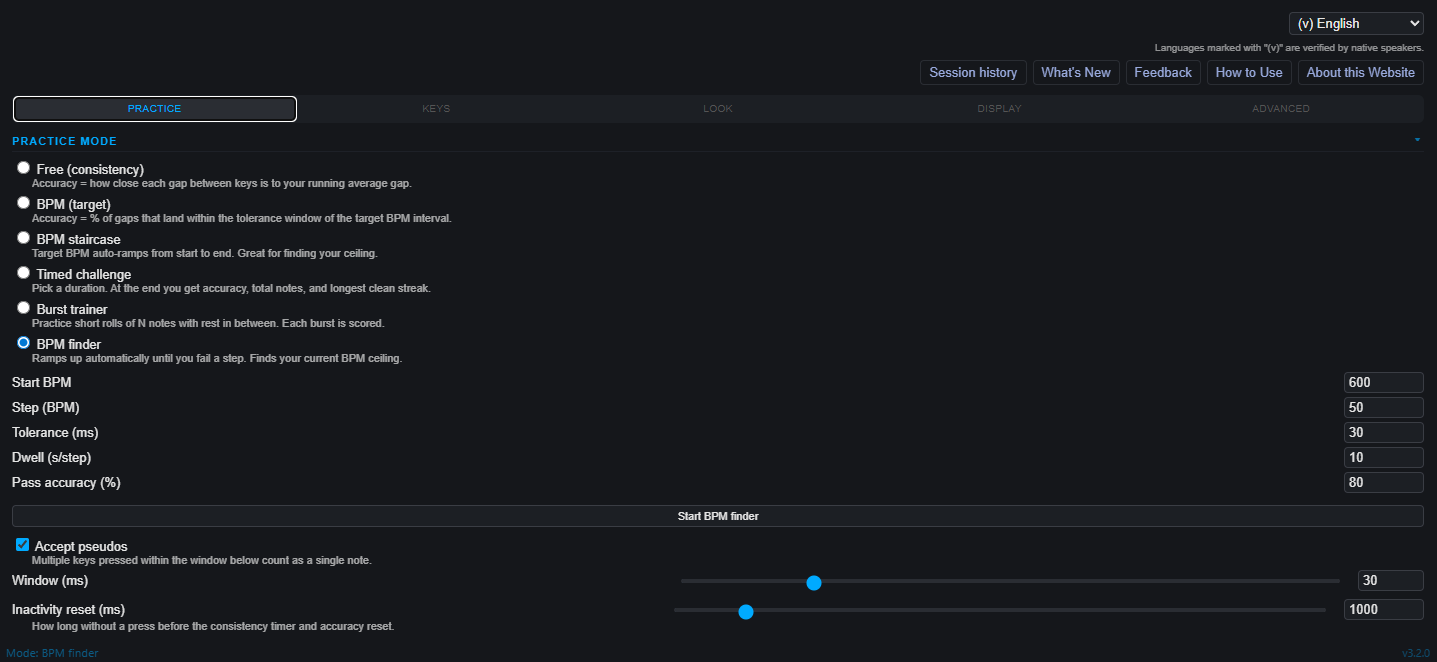
Open with the ☰ icon in the top-right corner. This is the central hub for every setting in the app, organised into tabs (Practice, Appearance, Shortcuts, etc.).

Key Layout & Presets
Configuring Rows and Keys
In ☰ → Practice tab → Key Layout. Supports 1–4 independent rows; you can change the keys, width and height. Match the visualizer to the exact keys you roll on in ADOFAI.

Built-in Layout Presets
Found in ☰ → Practice tab → Presets. One-click apply for popular community layouts (e.g. BypassedChicken's 16-key) — perfect for trying a new rolling style or matching a friend's setup.

Practice Modes
Switch between modes from the bottom toolbar or from ☰ → Practice tab → Mode.
Free Mode (Consistency)
Just play. Tracks consistency against your own running average — ideal for warming up and watching how steady your rolls are over time.

BPM (Target) Mode
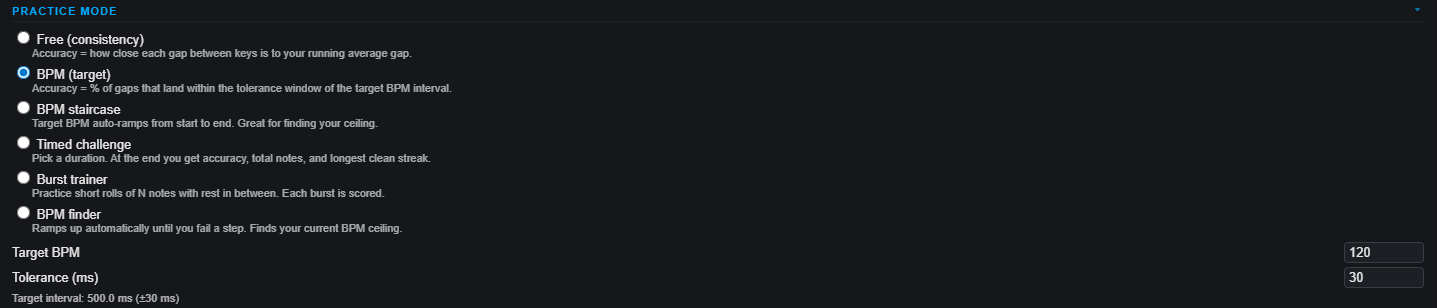
Set a target BPM and a tolerance window. Each press is marked in or out of tolerance — practice rolling at a specific BPM and see how close to the beat you really are.
BPM Staircase
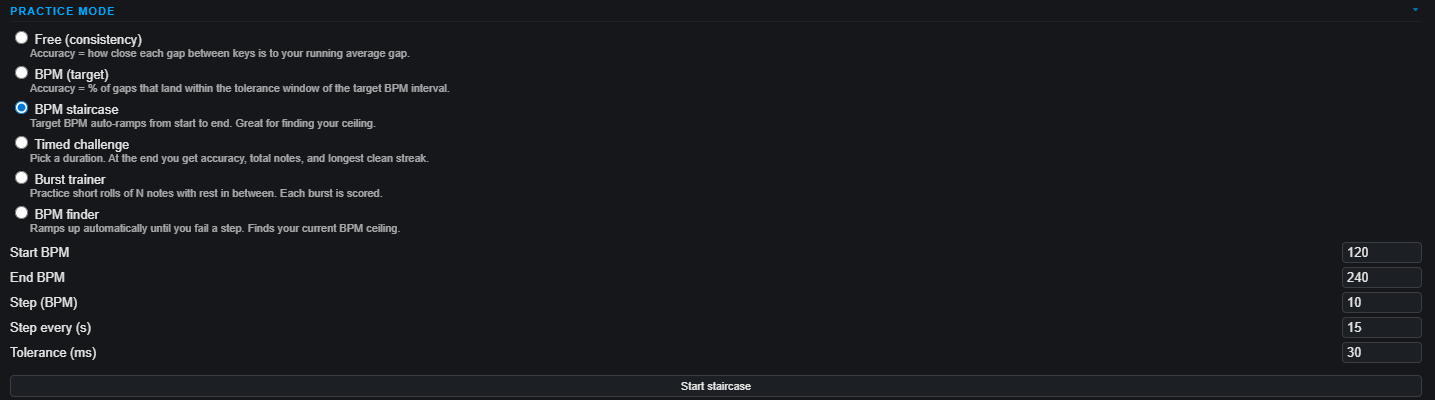
Auto-ramps the target BPM from a start BPM to an end BPM in steps. Per-step accuracy and a final summary help you find your speed ceiling.
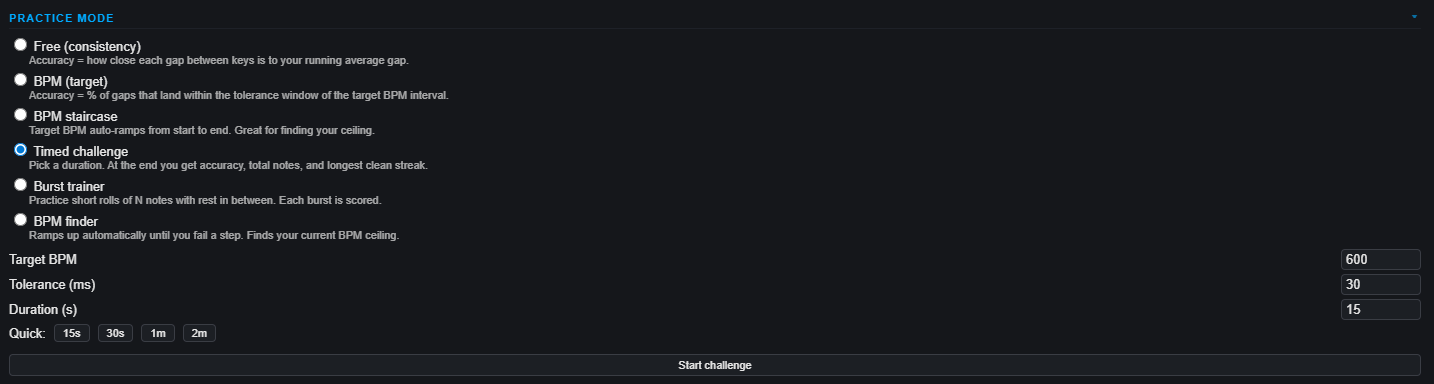
Timed Challenge
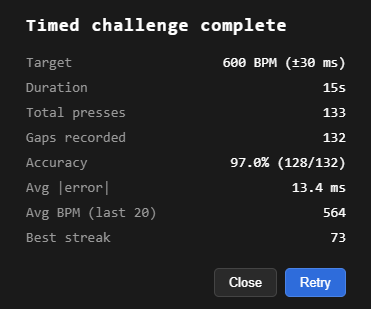
Roll at a fixed BPM for 15s, 30s, 1m or 2m. End-of-run results show accuracy, total notes, and best streak — great for endurance and beating your own records.
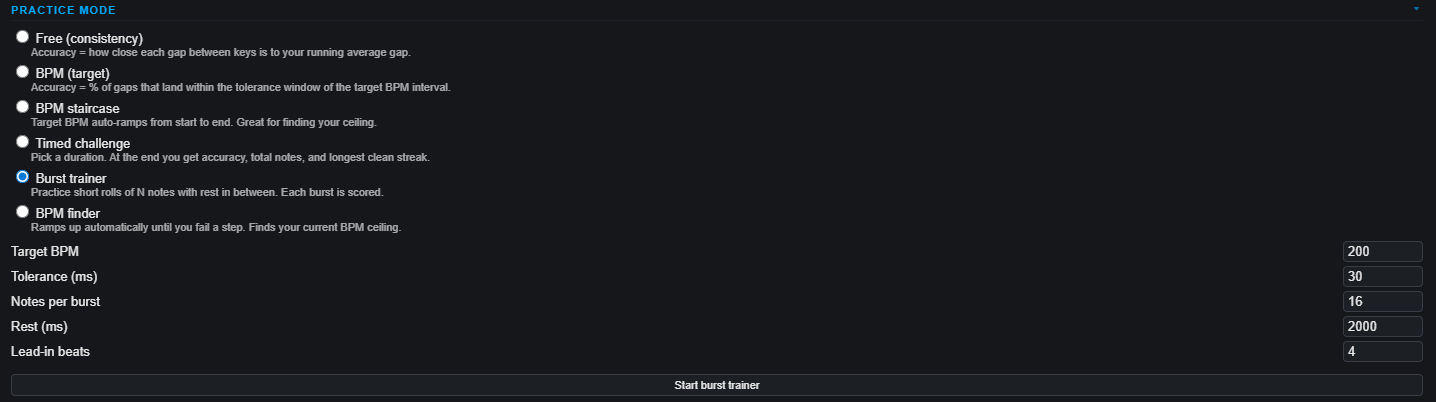
Burst Trainer
Short bursts of N notes with rest in between, plus a count-in lead-in. Per-burst scoring trains the kind of fast bursts that actually appear in songs.
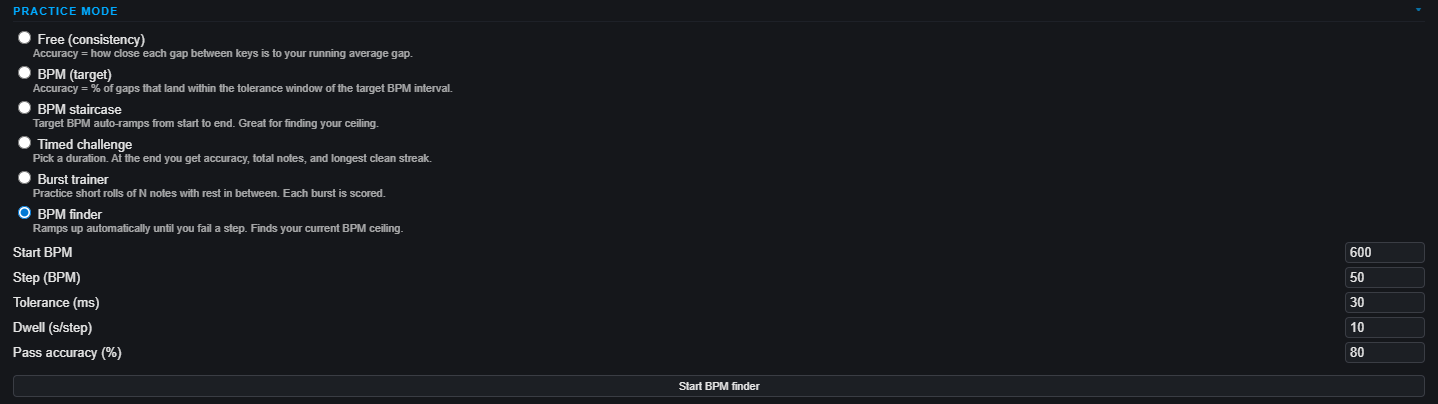
BPM Finder
Just press your keys and the app continuously estimates your BPM. Useful for figuring out your comfortable cruising speed.
Stats & HUD
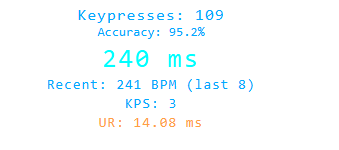
Bottom Stats Readout
Always visible at the bottom of the screen. Shows keypress count, accuracy, KPS, recent BPM, and current/best streak. Each readout can be toggled in ☰ → Practice → Stats.
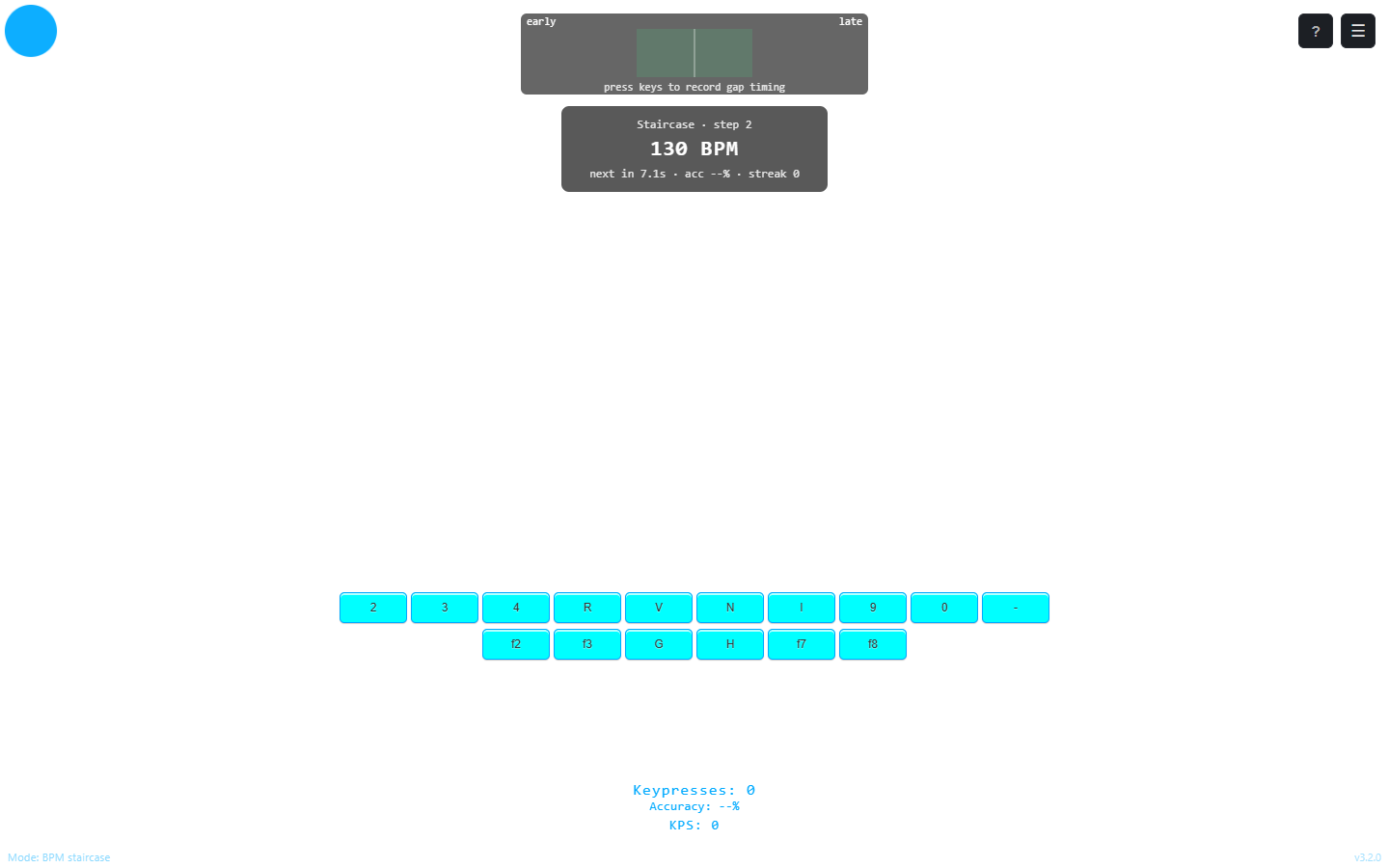
Challenge HUD
Appears automatically during Staircase, Timed, Burst and BPM Finder modes. Shows live progress so you don't have to take your eyes off the practice area.
Results Modals
Shown at the end of any challenge. Full breakdown of per-step accuracy, total notes, best streak, target BPM and more — easy to compare across attempts.
Hit-Offset Histogram
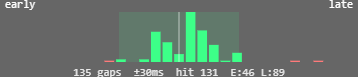
Live Timing Histogram
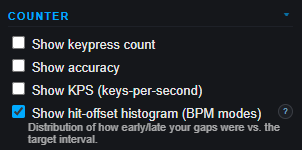
Toggle in ☰ → Practice → Histogram. Shows your gap-vs-target offsets in milliseconds, colour-coded green (in tolerance) and red (outside) so you can spot timing drift instantly.
Metronome
Audible & Visual Metronome
In ☰ → Practice → Metronome. Plays in time with the target BPM with adjustable volume, pitch, click length, four sound presets and a visual dot for silent practice.


Pseudo-Press
Pseudo-Press Window
In ☰ → Practice → Pseudo-press. Multiple keys pressed within a configurable window (down to 1 ms) count as one note — keeps stats meaningful for two-handed rolls.

Input Calibration
Calibrate Your Input Latency
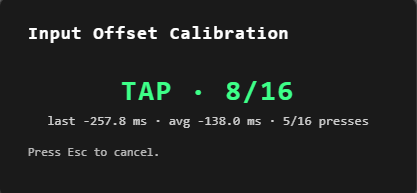
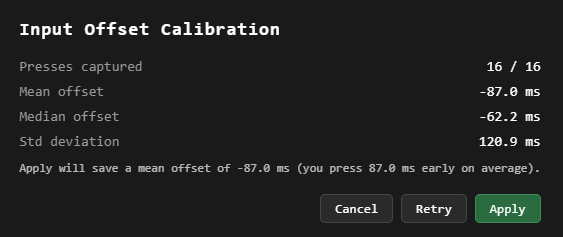
In ☰ → Practice → Calibration. Measures your press timing against the metronome and saves the offset automatically. Compensates for keyboard/display lag so accuracy reflects your real playing.



Inactivity Reset
Auto-Reset After a Pause
In ☰ → Practice → Inactivity reset. Set a timeout (down to 1 ms) after which consistency timer and accuracy reset, so a single break doesn't pollute the next attempt's stats.

Keyboard Shortcuts
Configurable Hotkeys
In ☰ → Shortcuts tab. Rebind "Hide UI", "Reset counter" and "Toggle menu" by clicking Set and pressing your chosen key. Pick a key you don't roll on.

Appearance & Customization
Colours, Opacity, Rain & Speed
In ☰ → Look. Background, key, border, pressed and text colours via colour pickers, plus per-row rain colours. Sliders for key opacity, rain opacity, rain fade height/softness, key font size and scroll speed — tune the visual feedback to be helpful, not distracting.

Per-Key Customization
You can customize each key individually from the Keys tab.

Rain Colour
You can adjust the rain colour from the Keys tab.

Fonts
Built-in & Custom Fonts
In ☰ → Appearance → Fonts. Pick from 8 built-in Google Fonts for keys plus a separate font for stats, or drag-and-drop a .ttf/.otf/.woff/.woff2 file for a custom font.

Save, Share & Import
Auto-Save
Automatic — every setting is saved to your browser's localStorage as you change it. Your setup is exactly how you left it the next time you open the page.
Export, Import & Share Link
In ☰ → Practice → Settings file / Share. Export config as JSON, import a JSON someone sent you, or copy a share link. Custom font files aren't included in share links.

Language
Switching Language
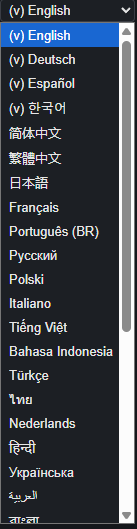
Pick from 33 languages in the welcome prompt or in the language dropdown at the top of the menu. Translations marked (v) are verified by native speakers; others are machine-generated.
Feedback
Built-in Feedback Form
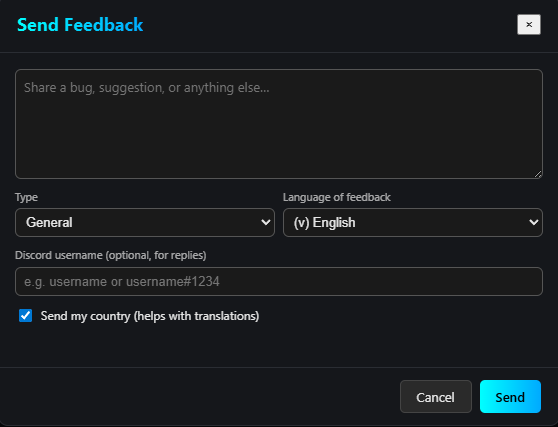
In ☰ → Feedback. Pick a type (General / Bug / Suggestion / Other) and optionally add language, Discord username and country. Submissions go directly to the developer via Discord.
What's New & Welcome Tour
Re-opening the Tour and Changelog
In ☰ → What's New. Shows the changelog for the current version and lets you reopen the welcome prompt at any time.
